Dashboard Tour
Where to find your API key, balance, request logs, and the no-code request builder inside the Scrappey dashboard
Everything you need to make your first request — your API key, your balance, a request builder, and your logs — lives in the dashboard at app.scrappey.com.
The screenshots on this page come from a demo account, so the key and figures shown are placeholders rather than real values.
Where to Find Your API Key
Your API key is on the Overview page, in the card labelled API Key. Use
the Copy button rather than selecting the text by hand — the field is
truncated on narrow screens and a partial key produces a confusing 401 later.
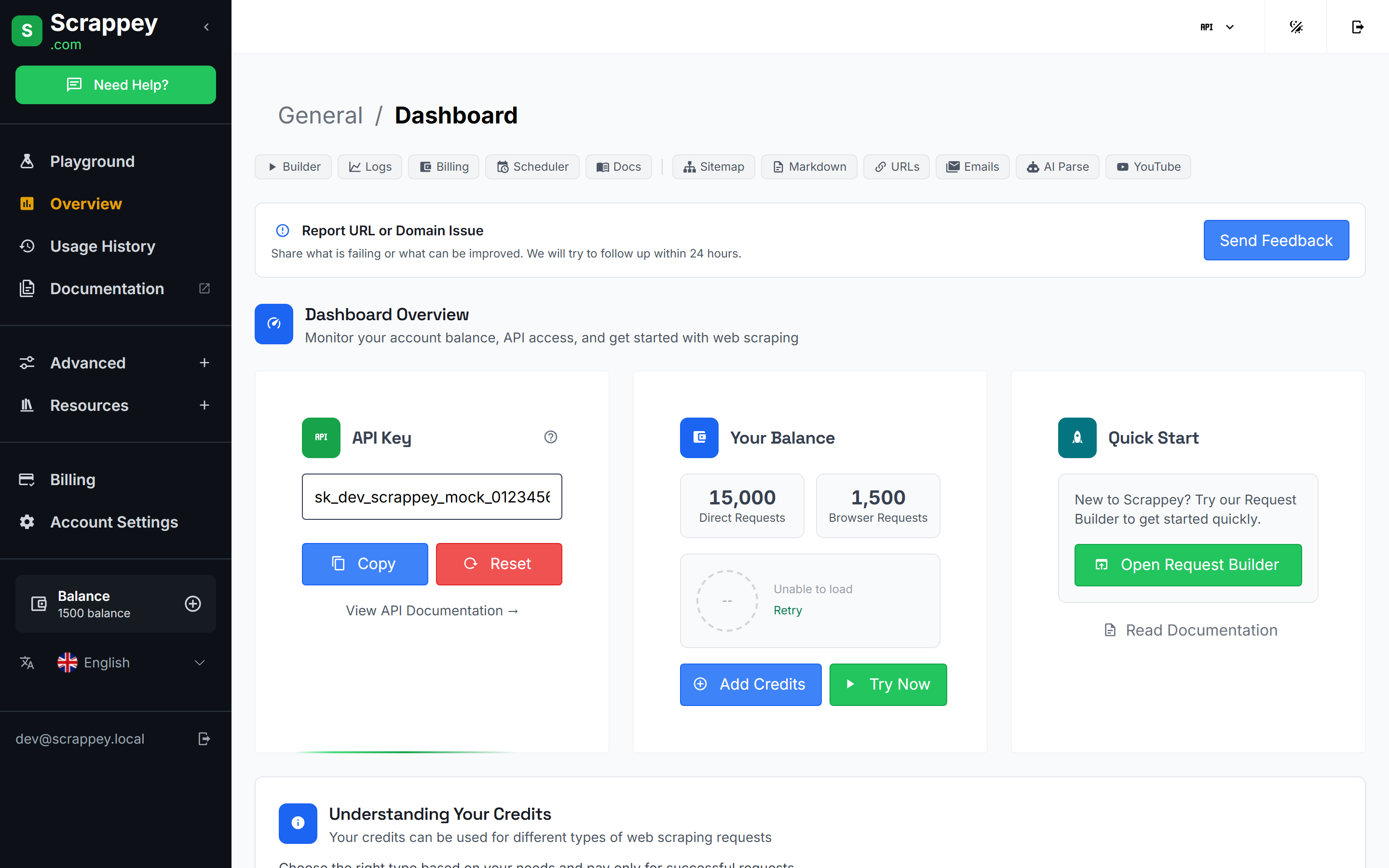
Every request you send carries this key, so treat it like a password:
- Keep it out of client-side code, screenshots, and public repositories.
- Reset immediately invalidates the old key and issues a new one. Any integration still using the previous key stops working as soon as you do this, so plan to update your code at the same time.
Checking Your Balance and Credits
The Your Balance card on the same page splits your credits into the two request types, because they do not cost the same:
- Direct requests — plain HTTP, the cheaper option.
- Browser requests — a full browser session that renders JavaScript.
You are only charged for successful requests, and credits do not expire. The Balance figure in the bottom-left of the sidebar is visible from every page, so you do not need to return to Overview to check it.
Testing a Request Before You Write Code
Playground opens the Request Builder, where you can run a request by filling in a form — useful for confirming a site behaves the way you expect before you write any integration code.
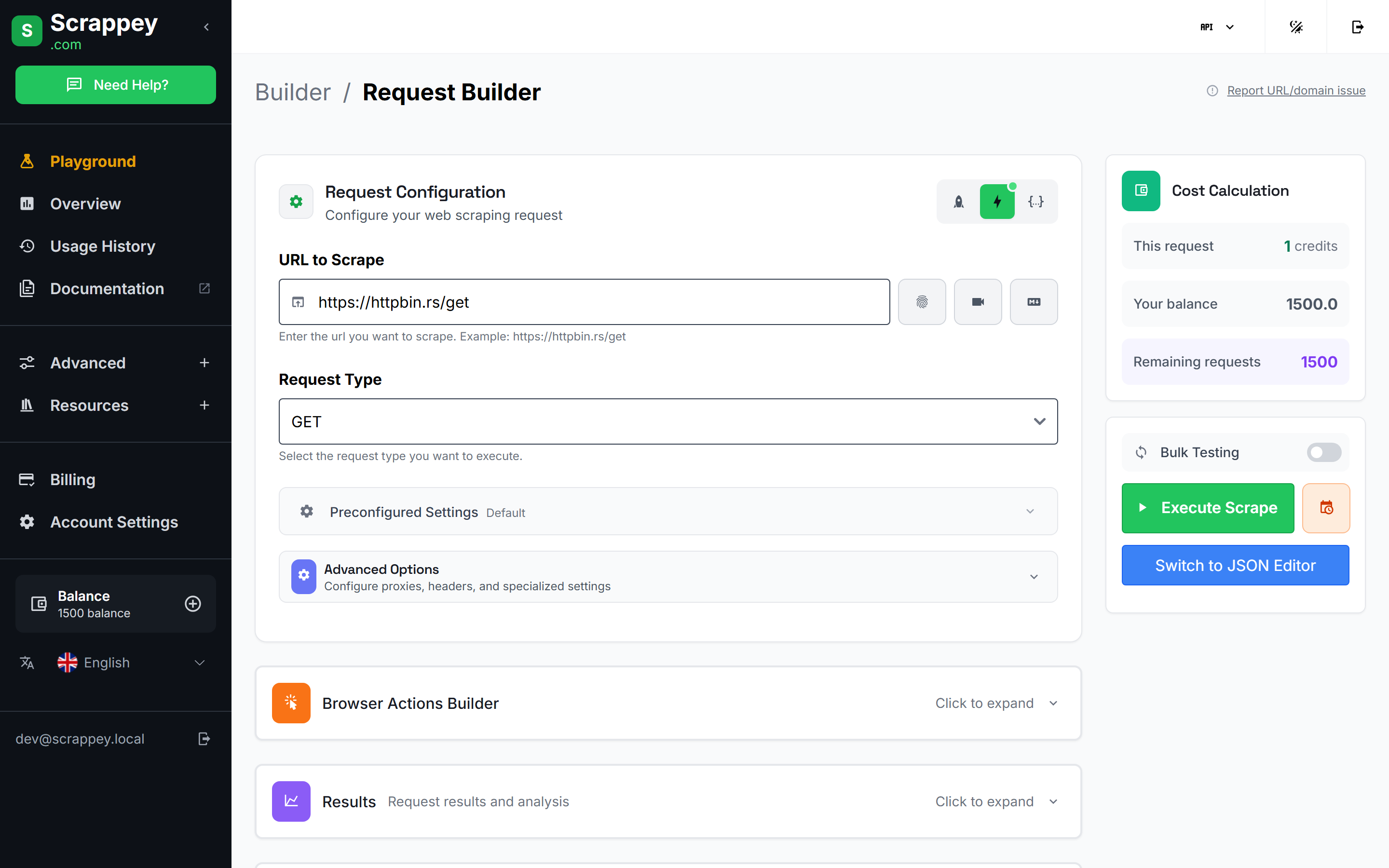
Enter the target URL, pick a request type, and press Execute Scrape. Two parts are worth knowing about:
- Cost Calculation shows what the request will cost before you run it.
- Switch to JSON Editor shows the same request as the JSON body you would send to the API, which is the fastest way to turn a working experiment into real code.
Checking Why a Request Failed
Usage History opens Logs & Analytics — your success rate, spend, and every individual request.
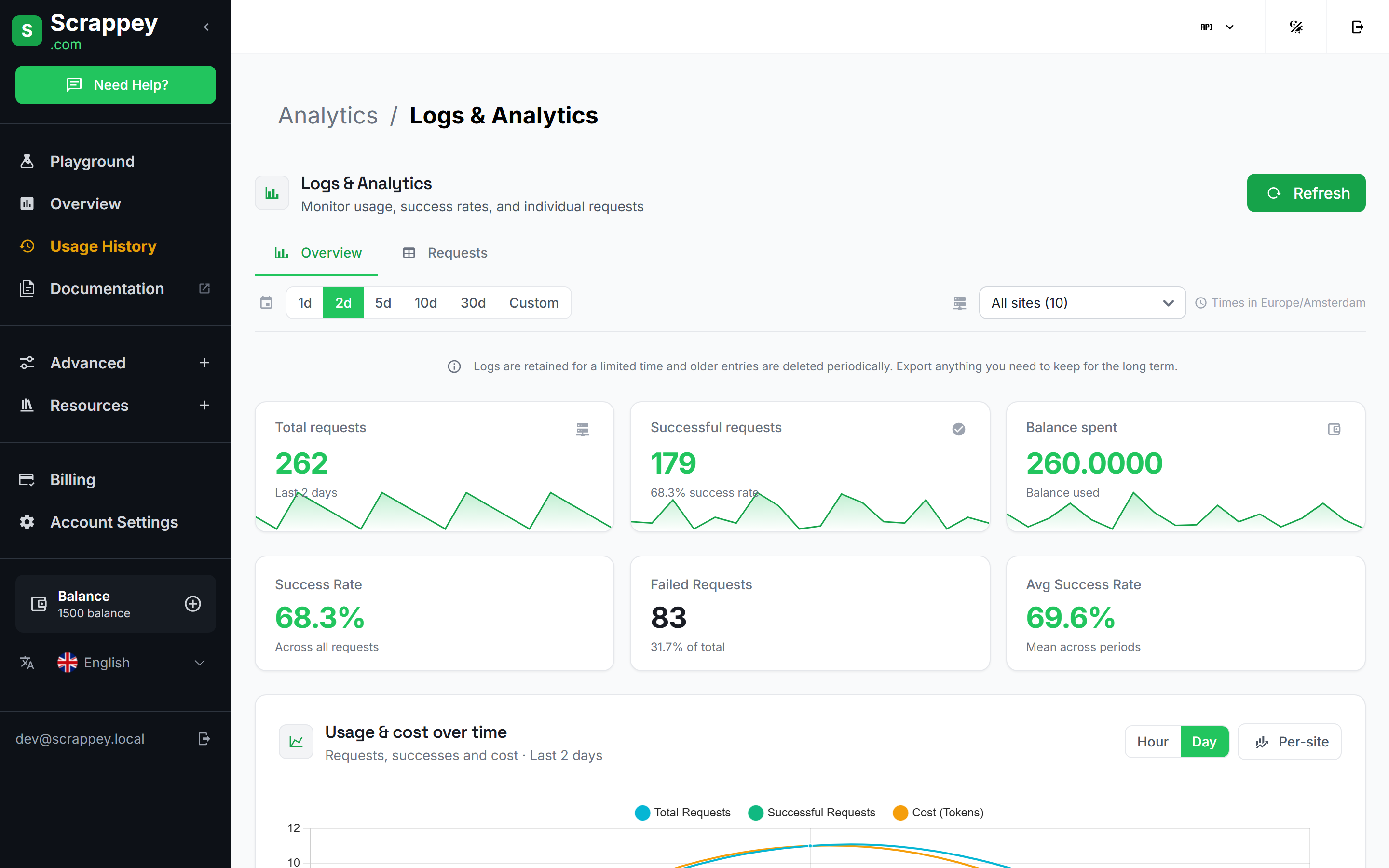
Start on Overview for the trend, then switch to the Requests tab to inspect individual calls and read the error returned for a specific one. The date range and per-site filter at the top narrow things down when you are running against several domains.
Logs are retained for a limited period and older entries are removed periodically, so export anything you need to keep.
Managing Your Account
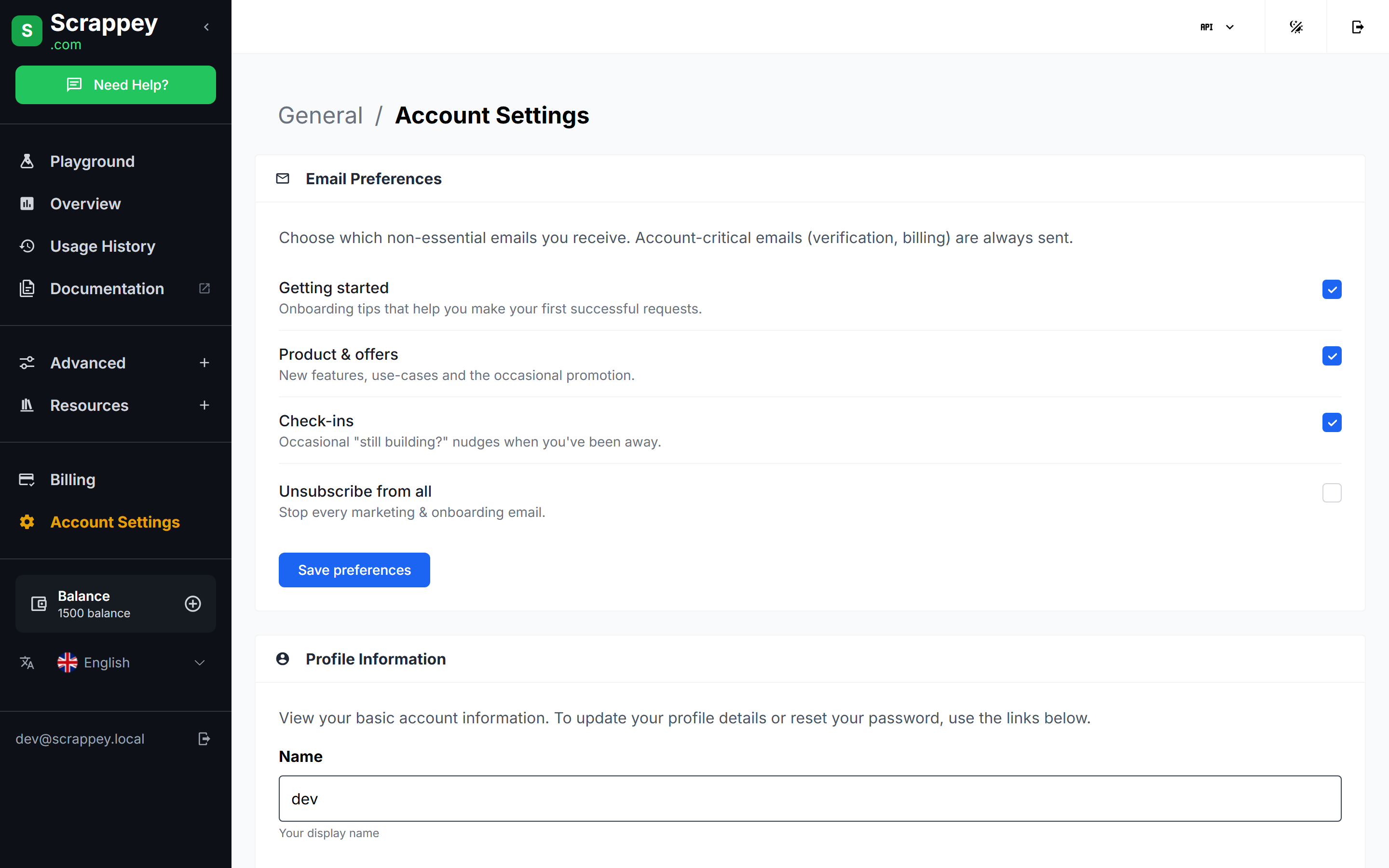
Account Settings holds your profile, password reset, and email preferences. Billing and invoices are under Billing.
Next Steps
With your key copied, send your first call — see request.get for the smallest possible request, or Getting Started for how Scrappey works.